
Turning non-production VMs off at night is the easiest Azure saving there is. Doing it without causing an outage is the part nobody writes about. This is an open-source scheduler that takes that saving as an application, in ordered rings, with two independent safety gates between you and a real power action — and it runs entirely in your own subscription. It is 3am. Somewhere in your subscription, a dev estate is fully powered and doing absolutely nothing. Nobody has logged in since 18:40. The bill does not care. The fix looks trivial for about ten minutes. Write a script, stop everything at 19:00, start everything at 07:00, collect the applause. Then someone runs it against an environment where the database tier and the app tier are just two more entries in the same resource group, the app tier comes up first, spends four minutes failing its health probe, and the platform team spends the morning explaining why the cost-saving initiative caused an incident. The saving is easy. The sequencing is what breaks.
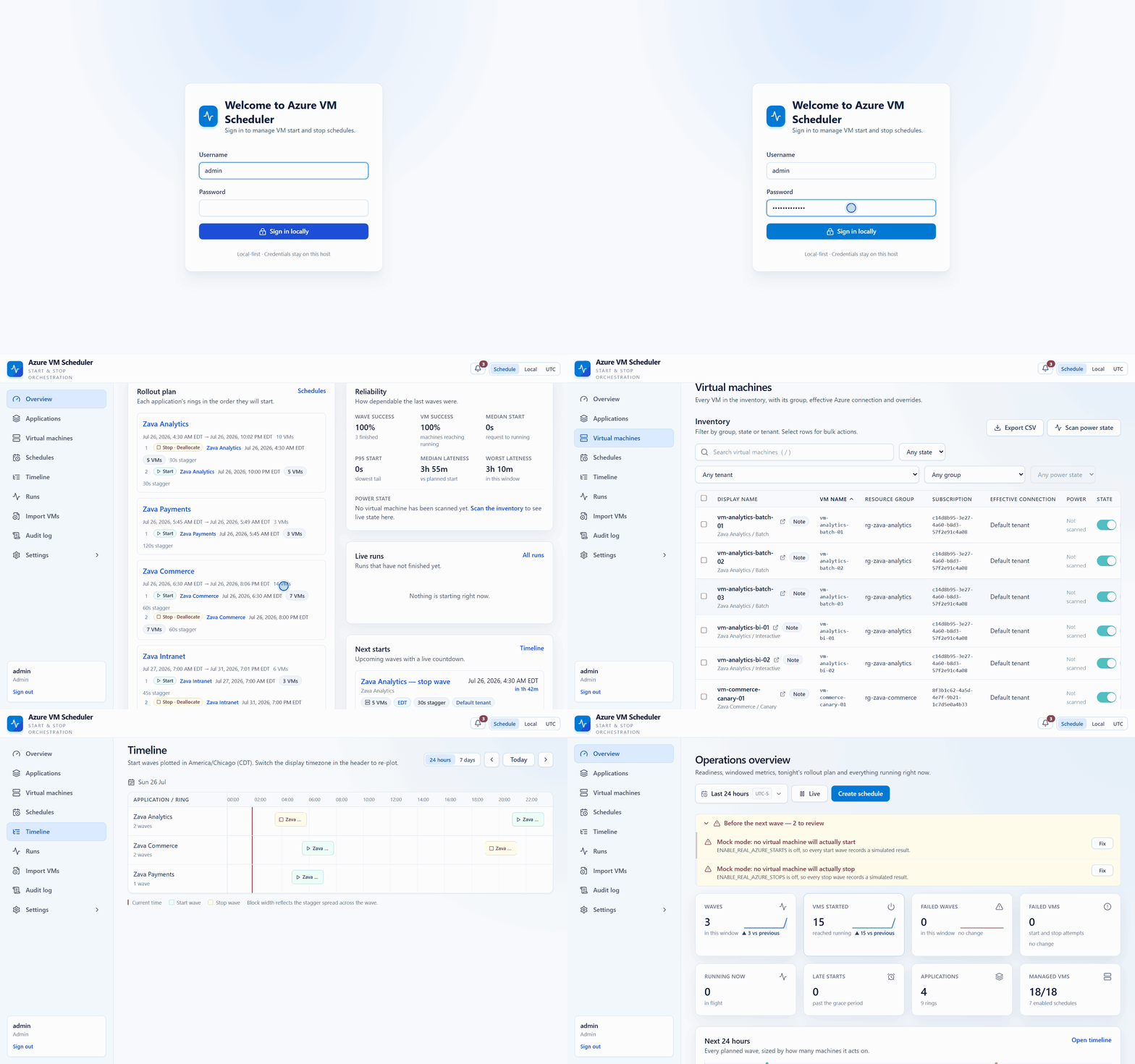
The whole application, end to end. Everything you are about to see runs against the built-in demo estate with both safety gates off — note the mock-mode banners. Azure VM Scheduler is an open-source, MIT-licensed scheduler that models your estate the way you actually talk about it — applications hold rings, rings hold virtual machines — and fans every scheduled occurrence out into an ordered, staggered wave of per-VM actions. Starts walk the rings forward. Stops unwind them in reverse. And until you deliberately flip two separate switches, none of it touches a real machine.
Two problems, not one
The money
Deallocating a VM stops the compute meter. That is the whole trick, and it is a good one: a machine that only needs to run 07:00–19:00 on weekdays is genuinely needed for 60 of the 168 hours in a week — about 36%. The other 64% is compute you are buying and nobody is using. Be precise about what you keep paying for, because this is where “we’ll save 64%” quietly becomes a credibility problem in your next FinOps review: deallocation stops compute charges, not storage. Managed disks keep billing whether the VM is running or not, as do reserved public IP addresses and anything else with its own meter. The saving is real and it is large, but it is a saving on the compute line, not on the invoice total.
The shape
Azure already gives you several ways to turn a machine off on a timer, and they work. The catch is that they are shaped like a machine, or like a tag, and applications are not shaped like either. An application has an order. The data tier comes up before the app tier; the front door comes up last; and on the way down it all has to happen in reverse. A canary ring exists precisely so that it is the first thing to come up and the last thing to go down. None of that is expressible as “shut this VM down at 19:00”, because the unit is wrong. What a large estate needs is a scheduler whose unit of scheduling is the application, with ordered stages inside it — and that is a modelling problem, sitting on top of primitives Azure already exposes very well.
Where this fits alongside what Azure already gives you
Azure is not short of building blocks here. Azure Resource Graph will tell you what is deployed across every subscription you can see. Azure Resource Manager exposes start, deallocate and powerOff as first-class operations with proper RBAC around them. Azure Policy, Azure Automation and the platform’s own auto-shutdown all sit on that same foundation. This project is not an alternative to any of that — it is a client of it. Discovery goes through Azure Resource Graph, power actions go through ARM, and identity goes through Microsoft Entra ID. What it adds is a shape:
| Tool | Designed for | Unit of action |
|---|---|---|
| VM / DevTest Labs Auto-shutdown | A single VM’s daily shutdown time | One VM |
| Azure Automation runbooks | Arbitrary automation you author and maintain | Whatever you script |
| Start/Stop VMs v2 | Scheduled, sequenced and CPU-triggered start-stop across whole scopes | Subscription, resource group or VM list |
| Azure VM Scheduler | Ordered, application-aware start/stop waves with per-action safety gates | Application → ring → VM |
Read that table honestly. If a resource group is a good enough boundary for your estate, use the built-in option — it is less to run, less to patch and less to explain to your auditor. Plenty of dev estates genuinely are flat, and for those this project is over-engineering. This exists for the estates where it isn’t. Where boot order matters, where a canary ring means something, where “stop everything in rg-dev” would take down the one machine that runs overnight settlement, and where the blast radius of a scheduling mistake is measured in incidents rather than in dollars.
A closer look at Start/Stop VMs v2
Of the built-in options, Start/Stop VMs v2 is the nearest neighbour, so it deserves a proper description rather than a table row. It is a Microsoft-published solution you deploy into your own subscription: an Azure Functions app holding a managed identity in Microsoft Entra ID, five Azure Logic Apps that carry the schedules and call that app with a JSON payload, Azure Storage for execution metadata and queues, and Application Insights behind a shared Azure dashboard with optional email through an action group. Each action is scoped to one or more subscriptions, resource groups, or an explicit VM list — with wildcard exclusions — and machines are ordered within a scope by tagging them sequencestart and sequencestop with values from 1 to N. It also does something this project does not: AutoStop watches CPU utilisation and stops idle machines via an alert. One thing to know if you are choosing today: Microsoft’s guidance states that no further development or enhancements are planned for Start/Stop VMs v2 beyond what is needed to keep its components on supported versions. That is ordinary platform evolution, not a warning — it still deploys, it was moved to the .NET 8 isolated worker model in 2024, and it still does what it does well.
| Start/Stop VMs v2 | Azure VM Scheduler | |
|---|---|---|
| Where the schedule lives | Azure Logic Apps you deploy and manage | The application’s own database, edited in a UI or over its API |
| How machines are grouped | Subscriptions, resource groups or a VM list, with wildcard exclusions | Application → ring → VM, inherited down the tree |
| How order is expressed | A sequencestart / sequencestop tag per machine, processed in ascending order | The ring’s sequence, inherited by every machine in it |
| Where results land | Application Insights, a shared Azure dashboard and action-group email | Per-run and per-attempt records in the app, with per-attempt retry |
| Where it runs | Azure | Azure, or a laptop on SQLite |
Three differences follow from that, and they are differences of design centre rather than of quality. Grouping is modelled, not enumerated. A scope in Start/Stop VMs v2 is written into the payload of the Logic App that owns it. Here the scope is a thing in the model: schedule the application and every ring and machine underneath inherits it, so adding a VM to a ring puts it in the right wave with nothing else to edit and no tag to remember. Order and overlap are properties of that model. Sequencing tags are processed in ascending order for both directions, so a reverse-order shutdown is something you author machine by machine in the sequencestop values. Here reverse is the default for stops — the wave diagram further down this post is two rows of the same list read in opposite directions. And because schedules can be inherited, they can overlap, which is why resolution is per action and nearest-wins: a property you need only once inheritance exists. The guards are sized to the unit. When the thing you point a schedule at is an entire application, a mistake is proportionally bigger — so the stop path gets two independent gates, never_stop that a machine inherits from any ancestor rather than an exclusion list per schedule, and an exact-count confirmation. That machinery is the price of the larger scoping unit, not a criticism of a smaller one. So: if you want CPU-triggered auto-stop, availability in the US Government cloud, a Microsoft support path, or simply nothing extra to run beyond Azure resources themselves, Start/Stop VMs v2 is the better answer. This project is for the estates where ordering, inheritance and blast radius are the hard part. Start/Stop VMs v2 details verified against its overview documentation, July 2026.
Model the estate the way you talk about it
The hierarchy is deliberately, aggressively shallow: an application holds rings, a ring holds virtual machines, and that is the entire tree. Exactly two levels, enforced everywhere — on create, on move, on CSV import, on settings import. There is no way to end up with a ring inside a ring inside a ring, which means there is never a debate about what a given schedule actually covers. The built-in demo estate shows the idea in about thirty seconds. Zava Commerce has three rings — Canary (one VM), Pilot (two), Production (four). Zava Analytics has Batch and Interactive. Zava Intranet has Pilot and Production. If your estate is tiered rather than ringed, name them Data, App and Web instead; the model does not care what a stage is called, only that stages are ordered. Attach a schedule to the application and every ring inherits it. Override one ring and only that ring changes. Override a single VM and only that machine changes. That is the whole inheritance story, and it is short on purpose.
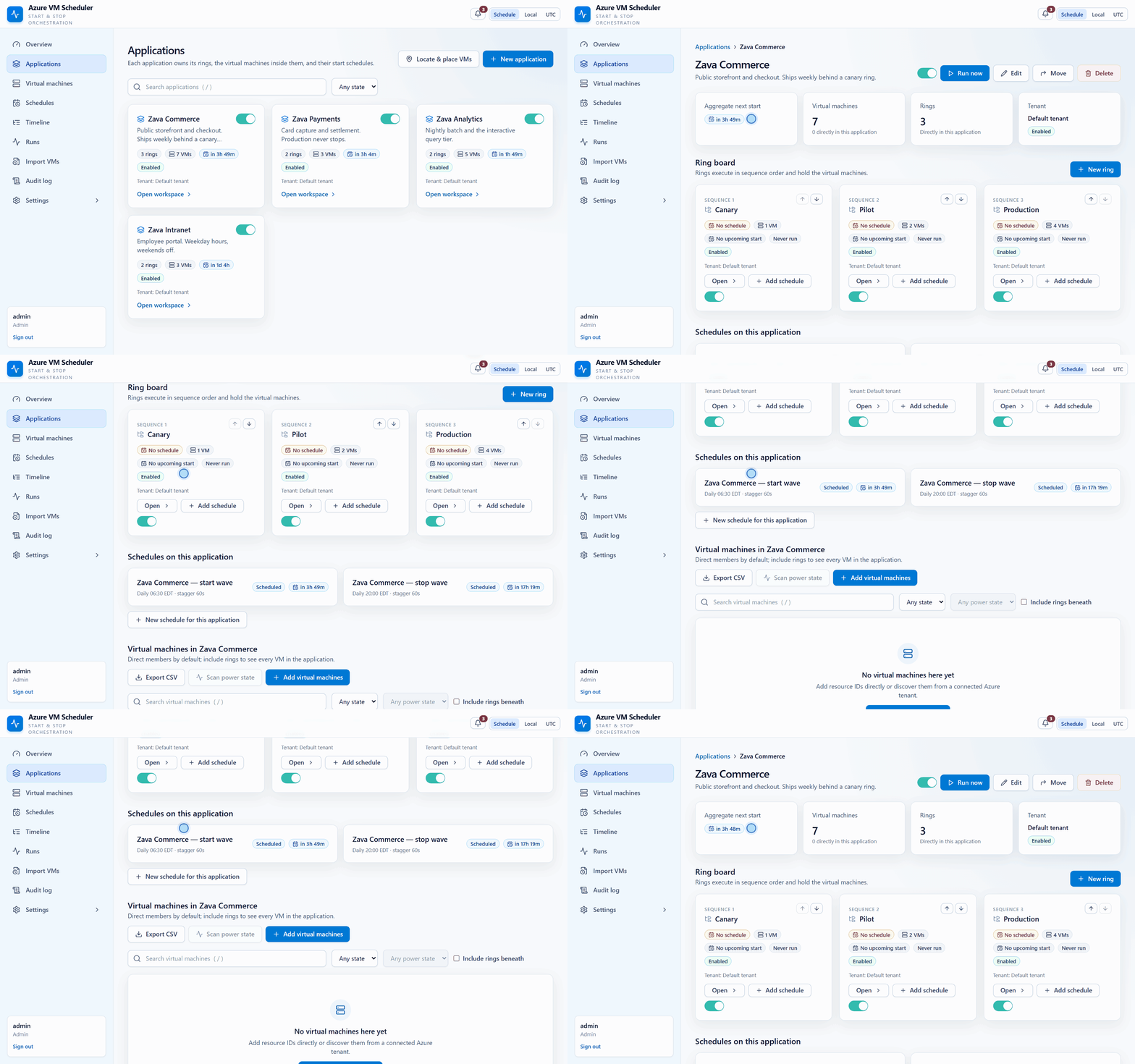
The ring board for one application. The sequence number on each ring is the whole ordering model — there is nothing else to configure.
Waves: what actually happens at 06:30
One occurrence produces one run. One run fans out into one attempt per virtual machine, ordered by ring sequence, with a configurable stagger between machines so you never hand ARM several hundred simultaneous power requests and watch it start throttling you. Zava Commerce’s start wave fires at 06:30 with a 60-second stagger. The canary machine goes first. A minute later the two pilot machines. A minute after that the four production machines, one per minute. Seven machines, seven attempts, in a defined order, each recorded. The stop wave at 20:00 does the same thing backwards. Stops default to reverse — the last ring in the sequence is the first one down, and the canary ring, which came up first, goes down last. That default is not a convenience; it is the single most important behaviour in the product, because reverse-order shutdown is exactly what a hand-rolled script forgets.
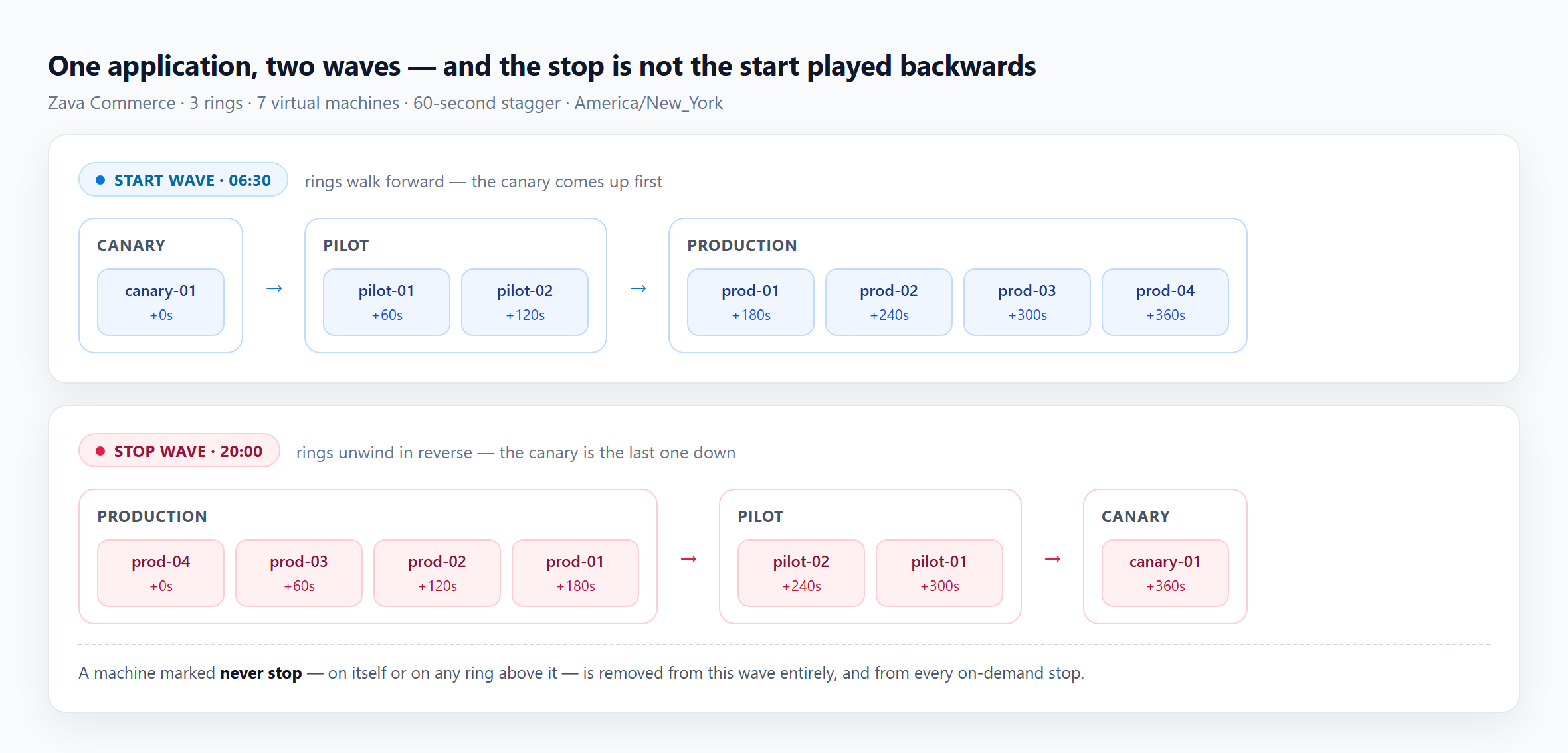
One application, two waves. Read the stop row right to left and you have the start row — that is the point. If you only take one picture from this post, take this one.
Nearest schedule wins — per action
Here is the guarantee that makes overlapping schedules safe to live with. For each action independently, a VM is acted on by the nearest schedule that targets it: a schedule on the VM beats one on its ring, which beats one on its application. Deeper shadows shallower. Because start and stop are resolved separately, a machine ends up with at most one effective start and at most one effective stop. Stack an application-wide 06:30 start, a ring-level 07:15 start and a per-VM 05:00 start on the same machine and it still starts exactly once, at 05:00. It cannot be started twice. It cannot be stopped twice. That property holds no matter how many schedules sit above it, which is what lets you layer overrides without keeping a mental model of the whole tree.
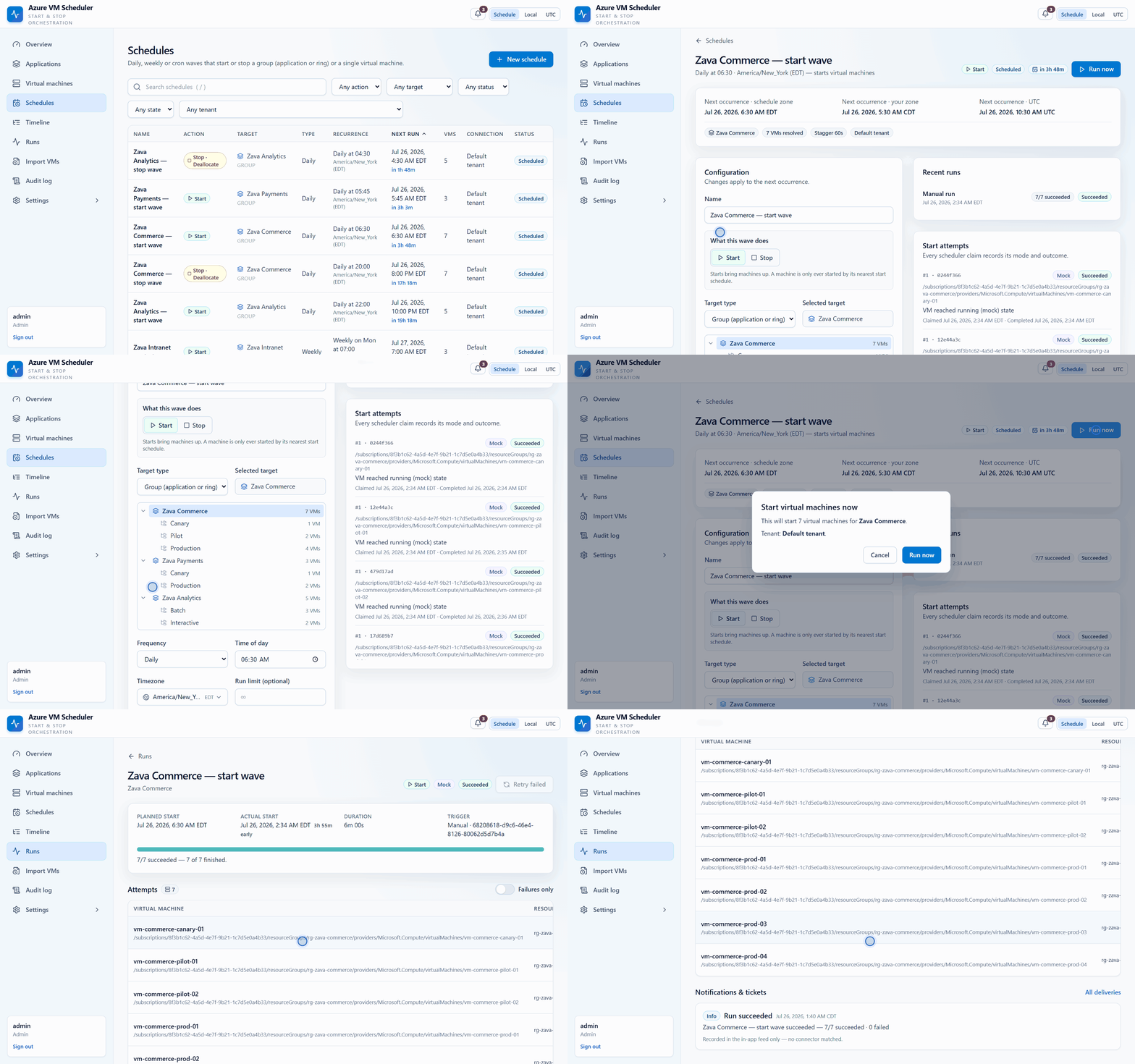
A wave running. Each row appears as its machine’s turn comes up, in ring order, one stagger interval apart.
Every wave leaves a paper trail
Every wave is fully reconstructable afterwards. A run carries a rolled-up status — succeeded, partially_failed, failed, timed_out or cancelled — and each attempt records its own status, whether it ran in real or mock mode, a message, its attempt number, its sequence position and a correlation id. When someone asks “what happened at 06:30 on Tuesday”, the answer is a page, not an investigation. Failed attempts can be retried individually, or the whole run can be retried and it will pick up only the ones that failed.
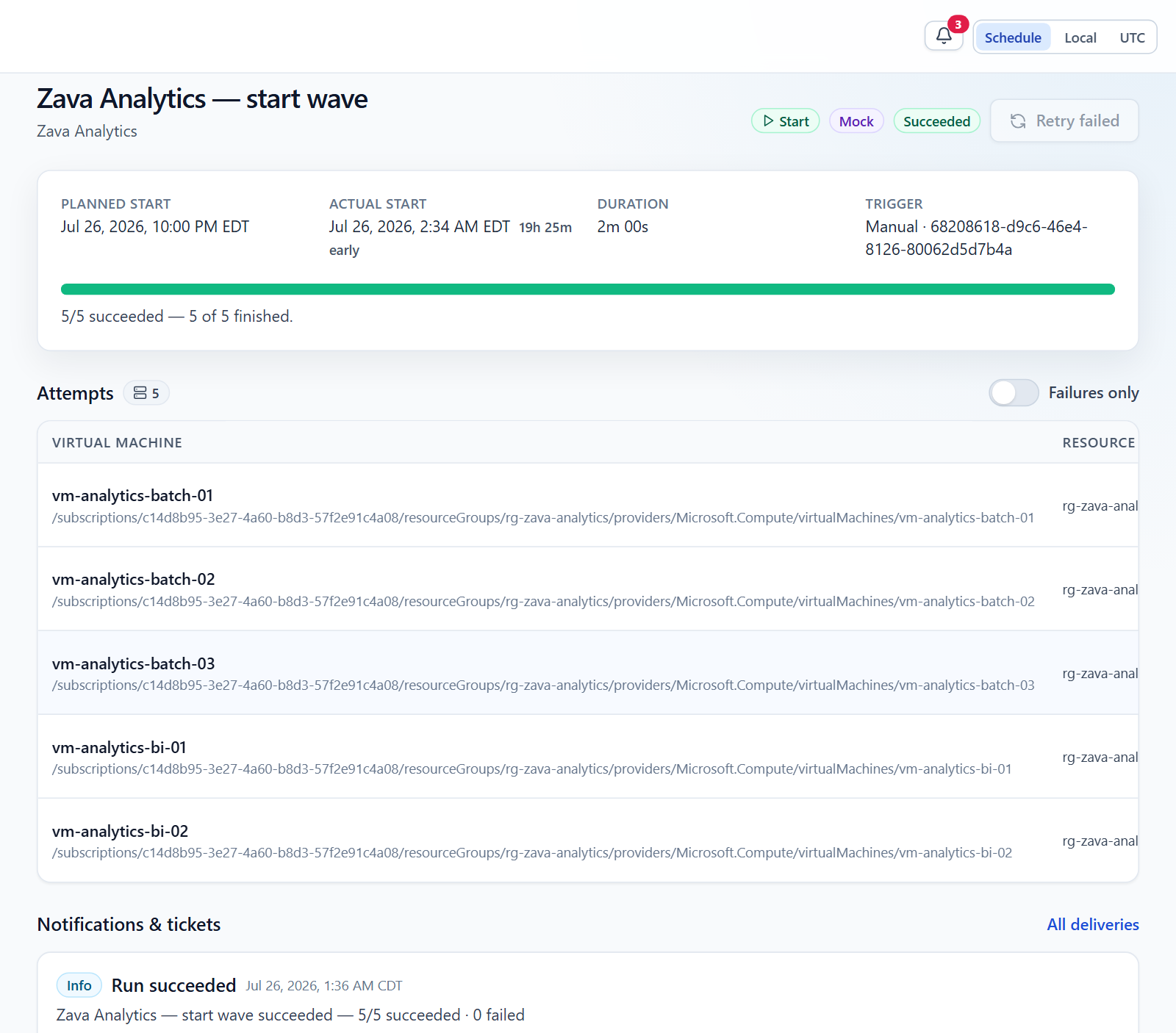
One wave, after the fact: the mode it ran in, the correlation id, the roll-up, and every machine it touched. This page is the answer to “what happened at 06:30 on Tuesday”.
Recurrence you can check before you trust it
Schedules come in four flavours: one-time, daily, weekly and full five-field cron — lists, ranges, steps, month and day names, Sunday as 0. Daily and weekly are stored as friendly fields and translated to cron behind the scenes, so there is exactly one occurrence engine in the codebase rather than one engine and three special cases that disagree at the edges. Everything is timezone-aware and stored against an IANA zone (the demo estate runs on America/New_York). Times are wall-clock: 08:00 stays 08:00 across a daylight-saving change, which is what an operations team means when they say “eight in the morning”. And an occurrence that lands in a spring-forward gap — an 02:30 job on the morning the clocks jump from 02:00 to 03:00 — is skipped, not silently shifted to 03:30. That is a decision, made once, applied consistently, and covered by tests.
The preview is the point
Cron is where scheduling bugs live. Everybody has confidently written 0 0 * * 0 and then argued about which day that is. So the editor does not ask you to trust it. On every keystroke it asks the server to describe the recurrence in plain English and return its next five occurrences — and the server answers using the same engine that will actually fire the schedule. Not a browser re-implementation of cron that agrees with the backend most of the time. The same code path. What the editor shows you is, by construction, what the scheduler will do.
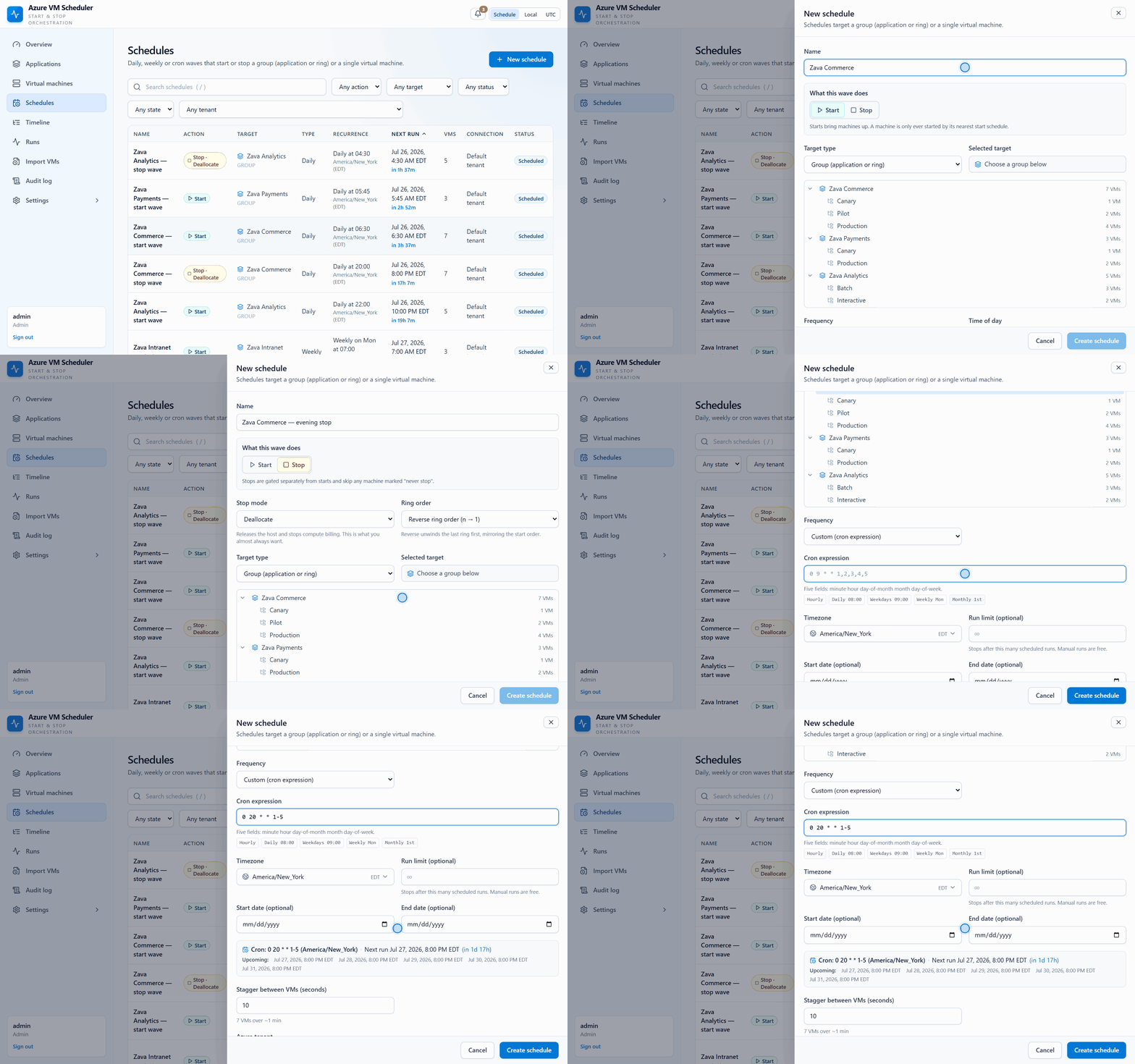
Watch the right-hand panel as the cron expression is typed. That description and those five dates come back from the server on every keystroke — from the same engine that fires the schedule.
Schedules that know when to stop
A schedule can carry start_date and end_date as local calendar bounds, and a run_limit budget. When the budget is spent or the end date passes, the schedule flips to status completed and stops producing a next run — rather than sitting there looking enabled while silently never firing again, which is the failure mode that has you debugging a scheduler that is working perfectly. Manual runs do not consume the budget; only scheduler-triggered ones do.
Why you can point this at production without flinching
This is the section the rest of the post exists for. Seven guarantees, each one a mechanism rather than a promise.
The gates
- Two independent gates.A real Azure start requires the globalENABLE_REAL_AZURE_STARTS setting and the target tenant’s allow_vm_start permission. A real stop requires ENABLE_REAL_AZURE_STOPS and allow_vm_stop. They are entirely separate. Turning on starts does not, and cannot, enable stops.
- Re-evaluated on every single attempt.The permission decision is deliberately kept apart from the expensive work of building an ARM credential. Adapters get cached because acquiring a token is costly; thedecision is remade for every attempt. Revoke a tenant’s stop permission while a stop wave is halfway through and the remaining attempts stop being real — immediately, not whenever a cached adapter happens to expire.
- Mock-first.Until both switches are on, every wave runs against a deterministic mock adapter that records a simulated result. You can build an entire estate, wire up every schedule, preview the next month of occurrences, run the waves, inspect the attempts and show the whole thing to your change board without touching a single machine. A fresh deploymentarrives inert — both gates ship false.
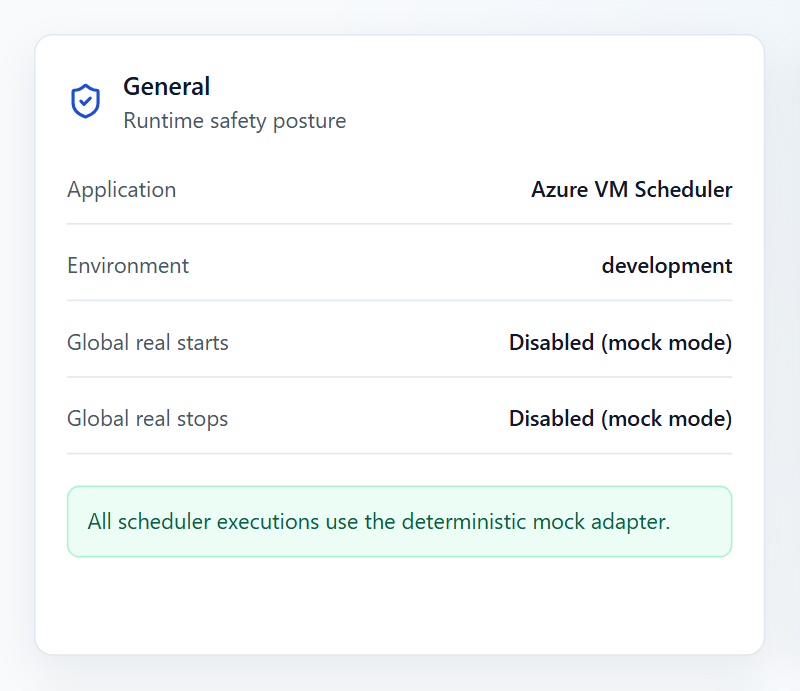
The gates are a visible posture, not a buried environment variable. This is what a fresh deployment looks like, and it is what it keeps looking like until somebody changes it.
The guards
- never_stop.Set it on a VM, or on any ancestor, and that machine is removed from every stop wave and every on-demand stop. Zava Payments demonstrates it: its Production ring runs overnight settlement, so it is marked never_stop and the application has a start wave but no stop wave at all. Nothing you do to the parent schedule can pull those machines into a shutdown.
- Exact-count confirmation.Selecting machines and pressingStop now stops nothing. The dialog names the tenant, states whether it will deallocate or power off, and refuses to arm until you type the machine count back. It is unglamorous and it has saved somebody’s afternoon.
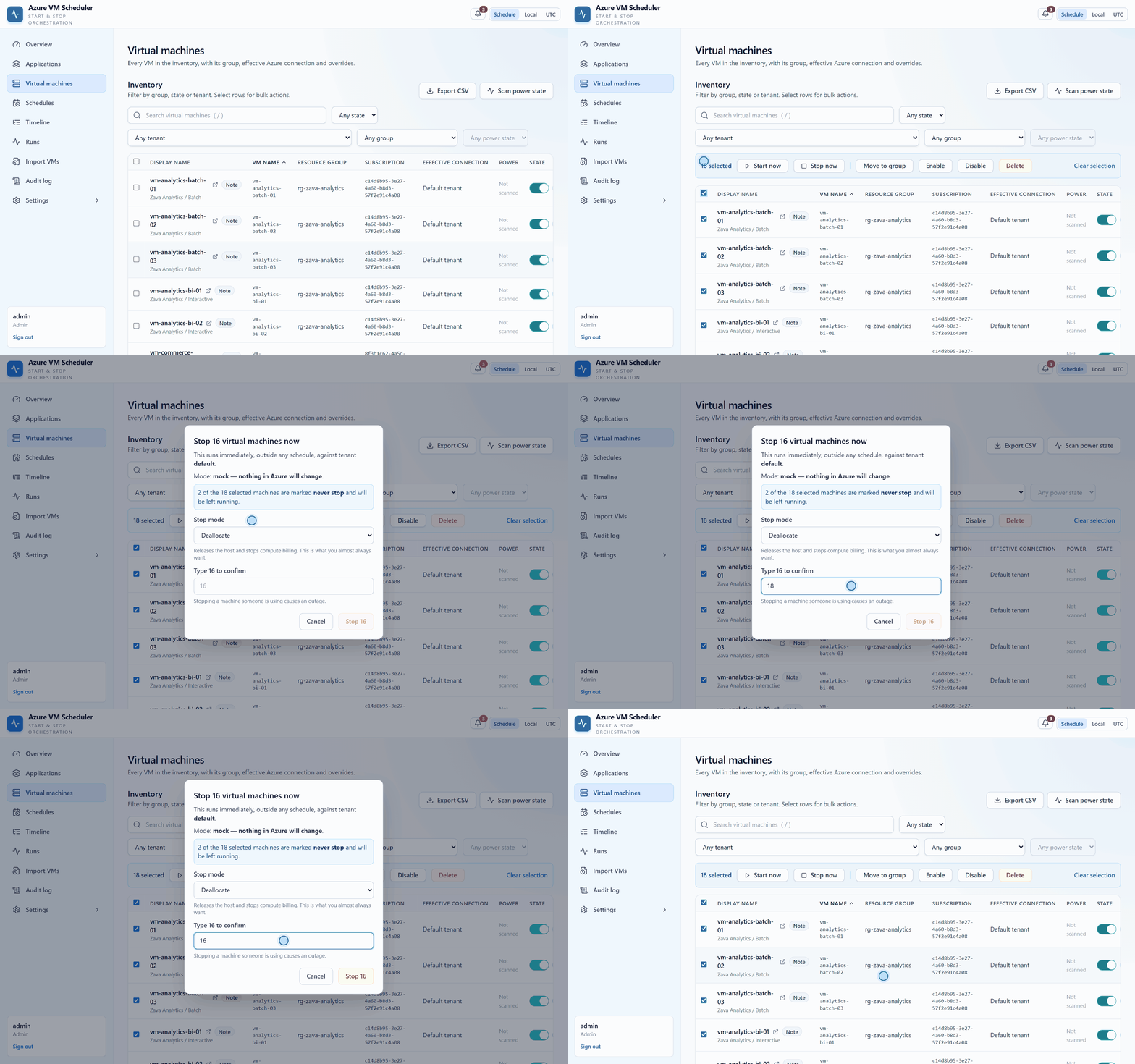
Eighteen machines selected, but the dialog offers to stop sixteen — two are never_stop and it says so. The confirm button stays dead until 16 is typed. Three of the seven guarantees, in one dialog.
- Conflict guard.The scheduler skips an attempt whose VM already has an opposite-action attempt in flight. If a start wave is still working on a machine, a stop wave will not race it.
- Read-only tenants can never power anything.A connection marked read-only refuses start and stop outright, gate or no gate, and a disabled connection refuses everything.stop_mode is deallocate by default — the one that actually stops the compute meter — with power_off available per schedule when you need the machine halted but not released.
Coverage gaps: the report you didn’t know you needed
Any scheduling system’s second-order failure is partial coverage. Not “the scheduler broke” — the scheduler is fine — but “eleven machines quietly fell outside it”. So the overview goes looking for exactly that, in both directions:
- Starts but never stops — machines with an effective start wave and no effective stop wave. These come up every morning and never go down. They are the ones burning money while everyone congratulates themselves on the savings.
- Stops but never starts — the inverse, and the more expensive mistake. These go down tonight and stay down, and you find out at 09:00 tomorrow.
- Stop protected — machines excluded by never_stop, listed explicitly so the exclusion is a visible decision rather than something you rediscover during an incident.
It also flags start and stop waves that overlap in time, including the stagger tail, so you find out at design time that your 20:00 stop wave for a forty-machine application is still running when the 20:30 start wave for something else begins.
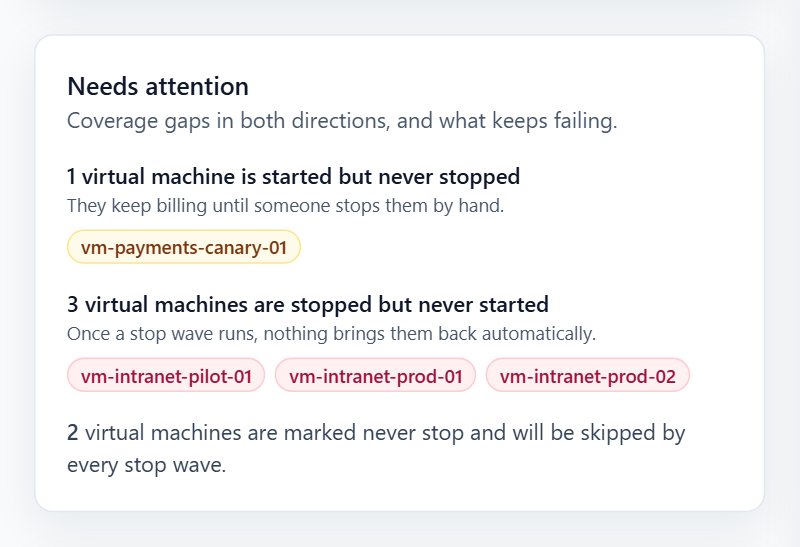
Gaps in both directions, named machine by machine. The middle one — three machines that stop tonight and are never started again — is the one that ruins a Monday.
The same page carries the pre-flight readiness checks (both global gates, tenants that are read-only or missing the permission a live schedule needs, credentials approaching expiry), windowed KPIs with a previous-period delta, a fourteen-bucket trend, the next-24-hours strip, the rollout plan, an application health matrix and reliability statistics.
Getting a real estate in without a spreadsheet
Nobody types four hundred resource IDs. Three routes in.
Paste bare VM names
Give it vm-commerce-prod-01 and it resolves the subscription and resource group for you through Azure Resource Graph. If a name is ambiguous across subscriptions, it surfaces the candidates and asks you to pick rather than guessing. Duplicates are blocked. You can also browse a subscription and select machines directly, or paste full resource IDs if you already have them.
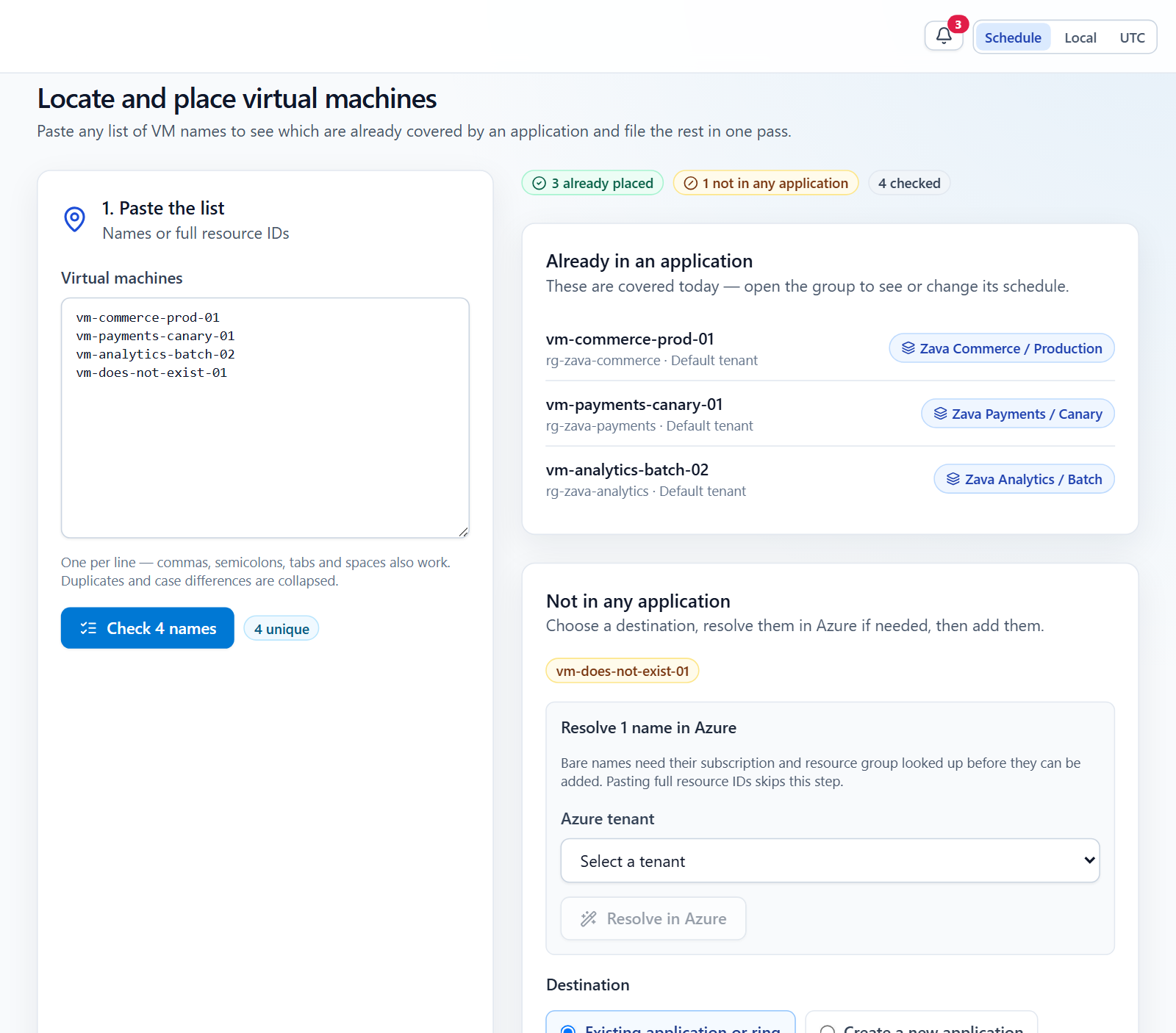
Four names in. Three are already filed and it tells you exactly which ring holds each; the fourth is unknown and gets offered a tenant to resolve against.
Import VMs
Point it at a UTF-8 inventory CSV and it runs a validating preview that reports exactly what would be created, updated and skipped before anything is written. The preview is bound to an encrypted, expiring token, and the commit is atomic — a stale or tampered preview is rejected rather than half-applied. The simplest valid file is a single column of VM names.
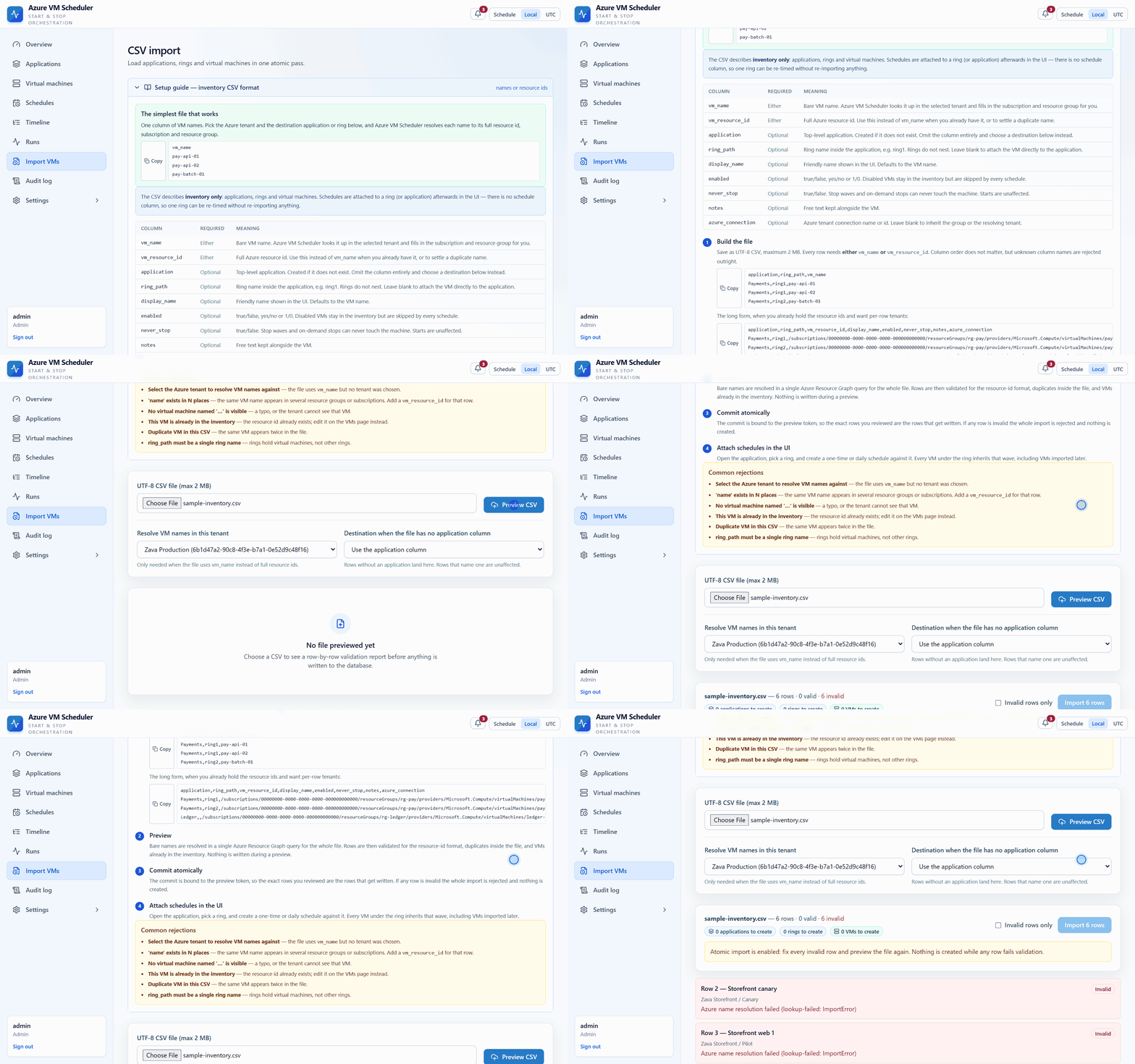
Nothing is written during a preview. The commit is all-or-nothing, and a preview that has gone stale is refused rather than partly applied.
Who gets to press the button
Access control is capability-based, and it is enforced on the API rather than hidden in the UI. Users hold roles directly or through access groups; their effective permissions are the union of both, resolved once per request. Five roles ship built in — admin, operator, auditor, viewer, noaccess — and they are re-seeded on every start, so a capability added in a new version is never left unusable on an existing deployment. Custom roles are free-form on top. Sign-in is local, or SSO, or both. SSO is multi-provider: any number of OIDC issuers configured from their discovery documents (Microsoft Entra ID is just the case where the issuer is derived from a directory id), and SAML 2.0 verified with signxml — where the code reads only the signed subtree the library returns, never the raw document, which is how a whole family of SAML signature-wrapping attacks stops being interesting. Three walls are enforced for every request: a noaccess allowlist, a forced-password-change allowlist, and a database-backed per-IP brute-force throttle that catches one attacker spraying many usernames rather than only many attempts at one account. Two lock-out guards return 409 rather than letting you strand yourself: you cannot remove the last enabled account that can manage users, and you cannot disable local sign-in when no SSO provider is enabled. Every action lands in an audit log.
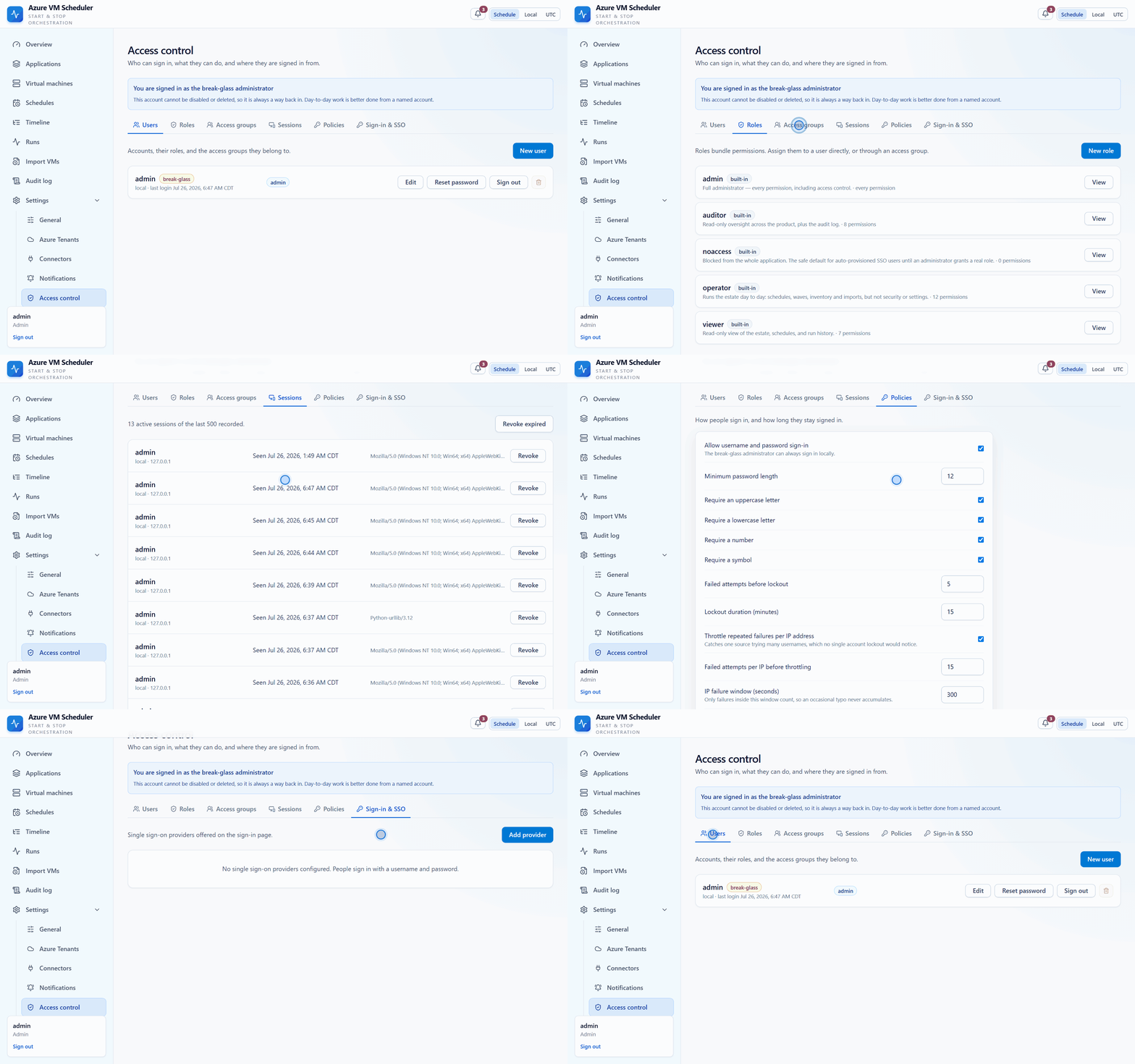
Users, roles, access groups, live sessions, sign-in policy and the SSO providers — one page, one permission to reach it.
Where it runs
One container image. The built single-page app is served by FastAPI at the same origin, so there is no CORS story, no second container and no reverse-proxy configuration to get wrong. The static mount is registered last, so it can never shadow the API. The Deploy to Azure button provisions, in your subscription: a Container App running the public image, Azure Database for PostgreSQL flexible server (Burstable B1ms), an Azure Files share mounted at /app/.data for the encryption key and connection registry, a Container Apps environment and a Log Analytics workspace. Replicas are pinned to one, because the scheduler is in-process by design. Setting privateNetworking at create time injects the environment into a VNet and puts both the database and the storage account behind Private Endpoints with public access disabled.
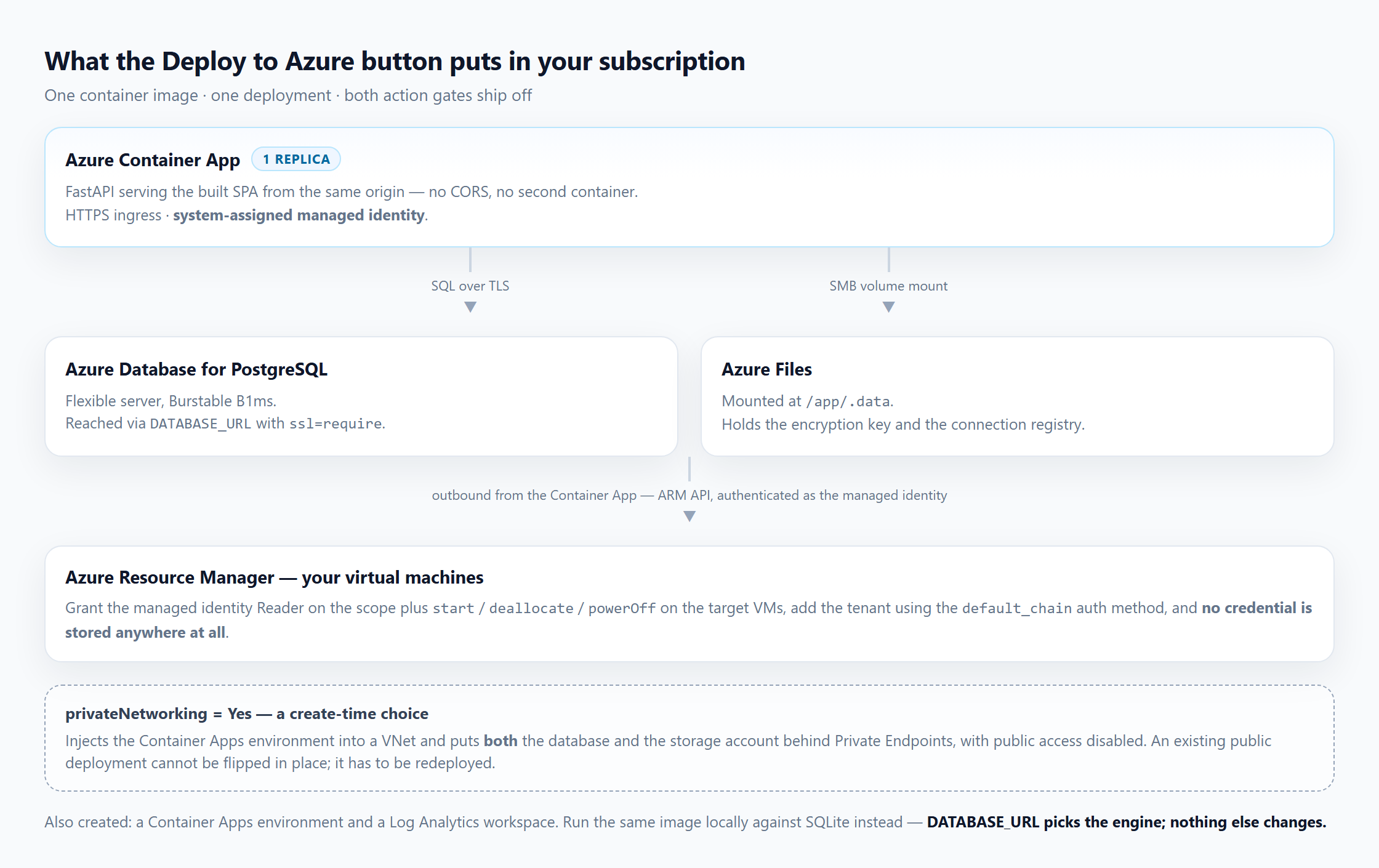
Everything one deployment creates. The private-networking switch is create-time only — an existing public deployment has to be redeployed, not flipped.
Connecting Azure without storing a secret
The Container App gets a system-assigned managed identity. Grant it Reader on the scope you want to manage plus start / deallocate / powerOff on the target VMs, add a tenant in the app using the default_chain auth method, and no credential is stored anywhere at all. Where you do store client secrets, they are Fernet-encrypted at rest and never leave the host.
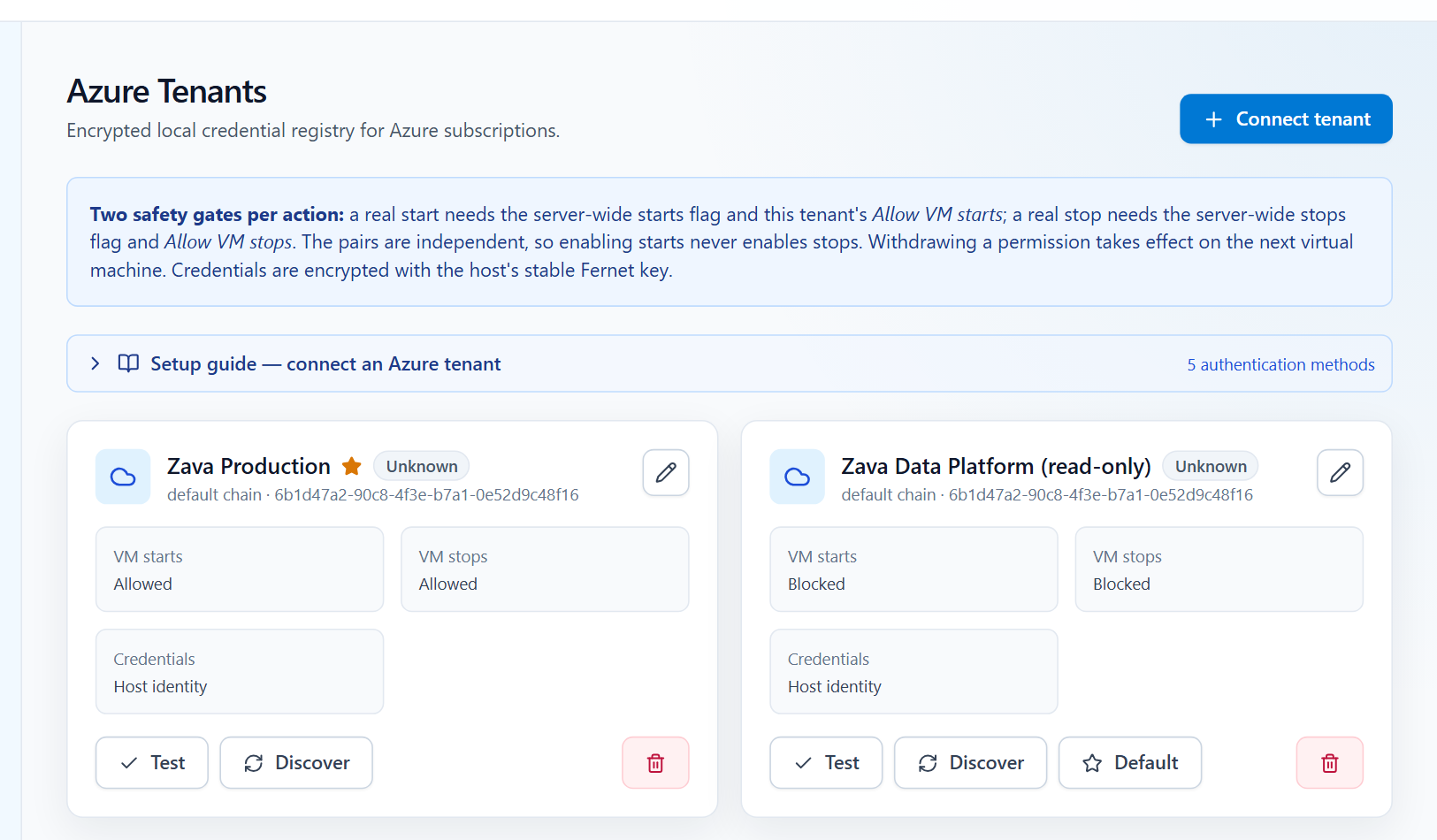
Two tenants, one writable and one read-only, both authenticating as the host identity. The per-tenant permissions are the second half of every gate.
Or run the whole thing on a laptop against SQLite. DATABASE_URL picks the engine; nothing else about the application changes.
How it’s judged
The claims above are mechanisms, and each one is testable:
-
A VM is never started twice nor stopped twice, whatever the schedule overlap — resolution is per action, and the nearest schedule wins.
-
The recurrence preview is produced by the same engine that fires the schedule, so what the editor shows is what the scheduler does.
-
An occurrence in a DST spring-forward gap is skipped, never silently shifted.
-
A real Azure power action requires two independent switches, re-checked on every attempt — so revoking a permission halts a wave already in progress.
-
never_stop is honoured by scheduled stops and on-demand stops alike.
-
Every wave is reconstructable after the fact: run status, per-VM attempt, mode, message, attempt number, sequence position and correlation id.
-
A fresh deployment cannot touch Azure until a human deliberately arms it.
What it deliberately isn’t
Worth knowing before you invest an afternoon:
- Single-replica by design. The scheduler runs in-process and the Bicep pins replicas to 1/1. That is a conscious trade — no leader election, no distributed lock, no split-brain — but it does mean this is not a highly-available control plane.
- Virtual machines only. Not scale sets, not AKS node pools, not App Service plans, not SQL.
- Not a cost tool. It will not price your savings, forecast them or chargeback them. It turns machines off; your existing cost tooling reports on the result.
- Two levels, permanently. If you need a five-deep hierarchy, this is the wrong shape and no amount of configuration will change that.
Try it
The fastest honest test is to run it against nothing. Deploy it with the button below — it arrives with both action gates off, so it physically cannot touch a machine — then open Settings → Demo data and load the sample Zava estate: four applications, nine rings, eighteen virtual machines and seven start/stop waves, complete with a never_stop ring and an application that starts but never stops, so the coverage-gap detection has something to find. It loads in one click and removes exactly what it created. Build your real rollout on top of that, rehearse every wave against the mock adapter, and only then decide whether to arm anything.
Let GitHub Copilot do the setup
Open an empty folder, put Copilot Chat in agent mode, and hand it the repository:
Clone https://github.com/zmustafa/AzureVMScheduler into this folder, set it up for local development, then start the backend and the frontend.
That is enough. The repository ships a README with the setup steps and VS Code tasks for both servers, so the agent has something to follow rather than a command line to invent. The API comes up on 127.0.0.1:8000 and Vite on 127.0.0.1:5173 proxying /api to it; with no DATABASE_URL set, the whole thing runs on a SQLite file under .data/ with nothing else to install. Sign in as admin, change the password when it makes you, and load Settings → Demo data.
- Repository: https://github.com/zmustafa/AzureVMScheduler
- Container image: https://hub.docker.com/r/zmustafa/azure-vm-scheduler
- Licence: MIT — issues and pull requests welcome
If you try it, I would genuinely like to hear which part of the safety model you found excessive and which part you found insufficient. That is the argument worth having. This is a community open-source project and is not affiliated with or endorsed by Microsoft.