
Put an AI in the driver’s seat of your Azure subscription
Azure Support Agent is an AI-driven operations workbench that runs in your tenant.
It discovers your workloads, reverse-engineers live architecture diagrams, runs
Well-Architected assessments, and dispatches a War Room of specialist agents to
investigate incidents against your real data.
Operating Azure at scale means living inside a dozen browser tabs. The Portal for one
answer, the CLI for another, Resource Graph for a query, Monitor for a metric, Advisor
for a recommendation, and a stack of blades just to confirm a single hunch. Every
incident becomes an archaeology project. Azure Support Agent was built
to end that scavenger hunt — by handing the keys to an LLM that can actually reason over
your live environment.
I’m excited to finally share it. Azure Support Agent is a free, open-source, MIT-licensed
operations workbench that you deploy into your own subscription. It talks to your tenant
through the official Azure MCP server and a Microsoft Graph
(Entra ID) MCP server, reasons over live evidence, and turns a vague question
like “why is the website throwing 5xx for some users?” into a ranked, validated
answer — complete with the diagrams, assessments, and dashboards to back it up.
And it doesn’t just wait to be asked. A whole Proactive Support suite
continuously scans your estate for coverage gaps and looming service retirements, while
scheduled autonomous agents push findings to Teams, Jira, or ServiceNow before they bite.
Think of it less as a chatbot bolted onto Azure, and more as a tireless platform engineer
who never closes the tab.
The core idea – Agentic, not just a chatbot
Most “AI for cloud” tools are a thin wrapper around a model that guesses from training
data. Azure Support Agent is different in one fundamental way: it works from
evidence, not vibes. Every claim it makes is grounded in a tool call against
your real subscription — a Resource Graph query, a metric read, a DNS lookup, an HTTP
probe. When it tells you a Network Security Group is blocking traffic, it’s because it
looked.
That grounding is what makes the rest of the product possible. Because the agent can see
what you see, it can do the tedious work you’d normally do by hand: map a workload, score
it against the Well-Architected Framework, find the resources missing a backup, or trace
a connectivity failure across five hops. Let’s walk through what that looks like.
Assemble a War Room of specialist agents
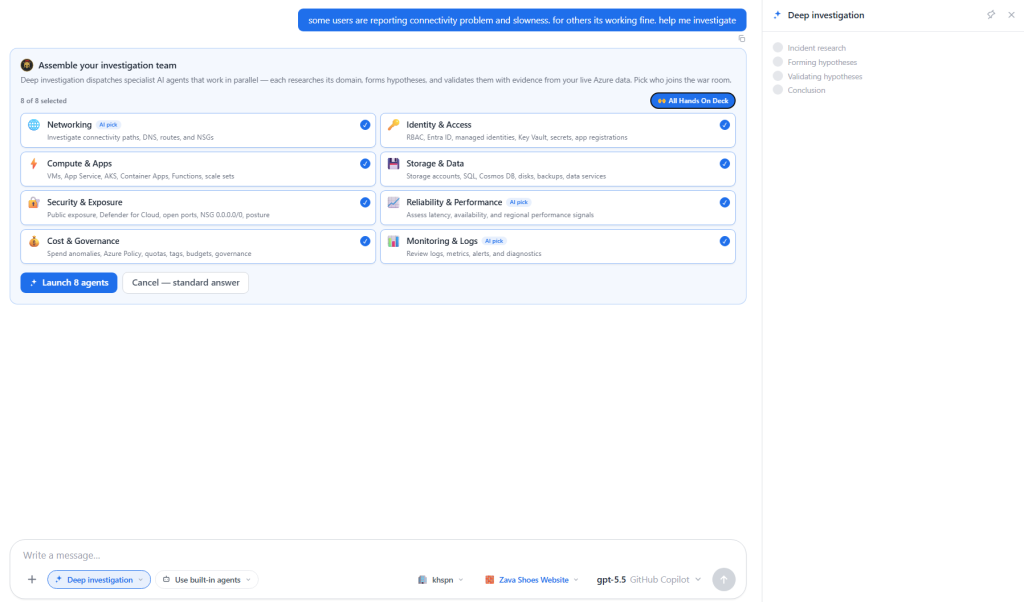
This is my favorite feature. When a normal answer won’t cut it, you flip on
Deep investigation and the app assembles a War Room — a team of
specialist agents that each own a domain: Networking, Identity & Access, Compute &
Apps, Storage & Data, Security & Exposure, Reliability & Performance, Cost &
Governance, and Monitoring & Logs.
You describe the symptom in plain English — “some users are reporting connectivity
problems and slowness; for others it’s working fine” — and the orchestrator
recommends which specialists to bring in. Hit Launch and they research
in parallel, each forming hypotheses about its own domain and validating them against your
live Azure data. Then they converge: incident research → hypotheses → validation →
conclusion, with a confidence score attached.
Underneath the War Room is a full conversational surface: multi-session chat with isolated
context, live SSE streaming, image support, and a per-message reasoning + tool-call
timeline that persists across reloads. Cancel a running turn anytime — the work continues
server-side and is saved, so you never lose a long investigation to a stray refresh.
Architectures + Memory
Diagrams that draw themselves
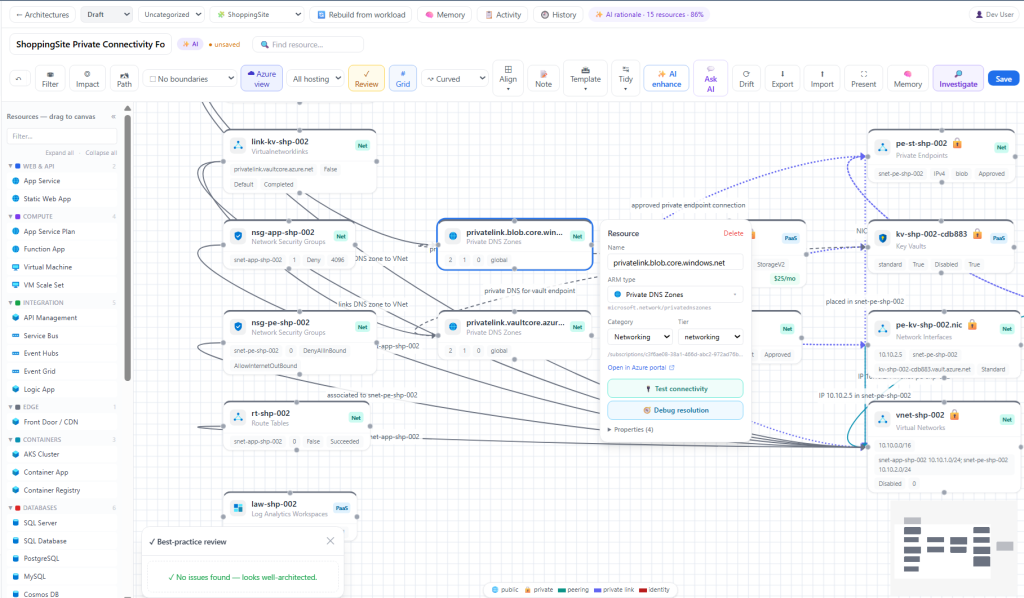
Architecture diagrams are always out of date the moment they’re drawn. Azure Support Agent
fixes that by generating them from reality. Point it at a workload and it reverse-engineers
the live resources into an interactive diagram — complete with network boundaries, private
link relationships, identity edges, and rough monthly cost hints. A built-in best-practice
reviewer flags anti-patterns, and an “AI rationale” panel explains why it drew
things the way it did.
Crucially, those diagrams aren’t throwaway. You can save revisions, group them into
collections, and keep a persistent Architecture Memory that feeds back
into dashboards and investigations. The agent literally remembers what your estate looks
like, so the next conversation starts smarter than the last.
Workloads & inventory
Discover and group resources into workloads, browse a sortable inventory grid and world map, and search your estate in natural language.
Live, not stale
Diagrams are generated from current resources — boundaries, private endpoints, identity edges, and cost hints included.
Well-Architected assessments, on demand
Run a Well-Architected-style assessment across all five pillars — Security, Reliability,
Cost Optimization, Operational Excellence, and Performance Efficiency — and get back pillar
scores, an executive summary, and a control-by-control breakdown. Each finding maps to
real frameworks (NIST, ISO, CIS), carries a severity, and supports a full lifecycle:
waivers, baselines, owners, and ticketing.
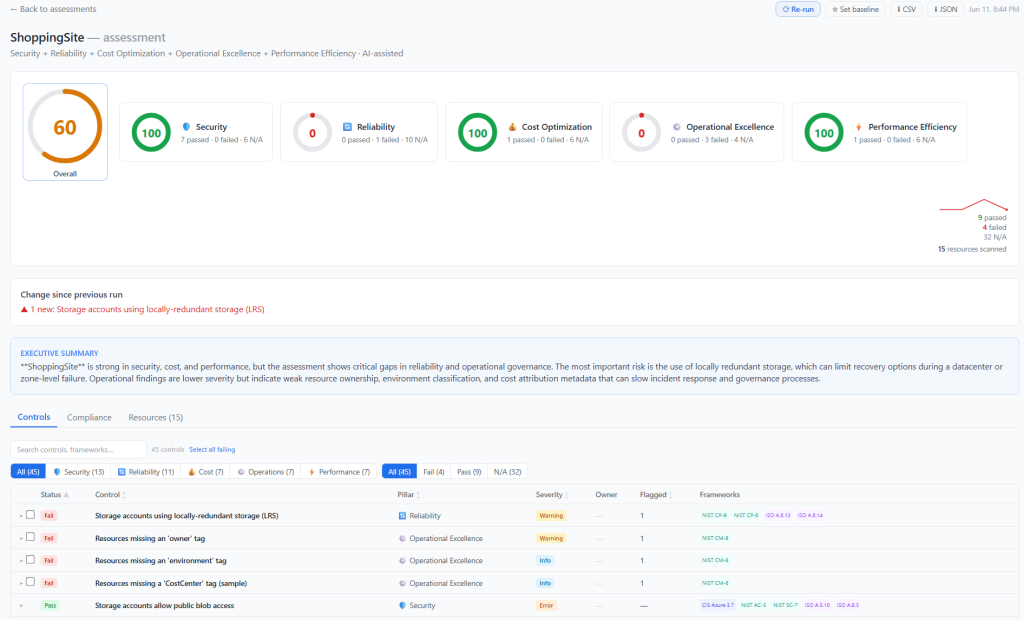
Because runs are kept as history, you also get a “change since previous run” diff that
surfaces new risks the moment they appear — like a storage account that quietly dropped to
locally-redundant storage. Export to CSV or JSON, set a baseline, and re-run on a schedule.
It’s the kind of governance rigor that usually takes a consultant a week, available as a
button.
Find the risks before they find you
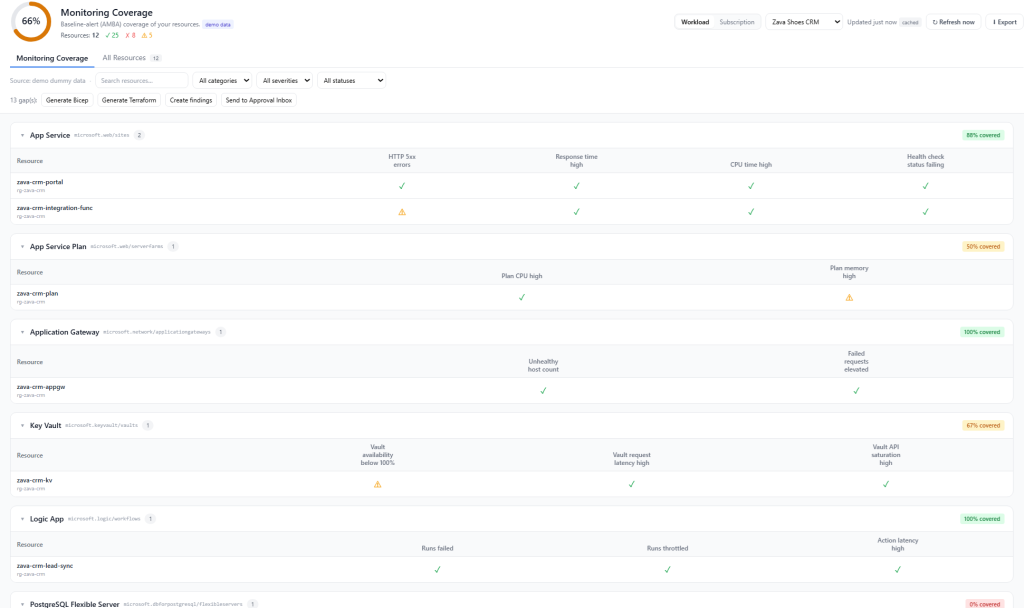
Reactive tooling waits for you to ask. Azure Support Agent’s Proactive Support suite goes
looking. It continuously scans for the gaps that cause 2 a.m. pages — missing alerts, blind
spots in your telemetry, unprotected data, and deprecations on the horizon — and, where it
can, hands you the Bicep, Terraform, or Policy to close them.
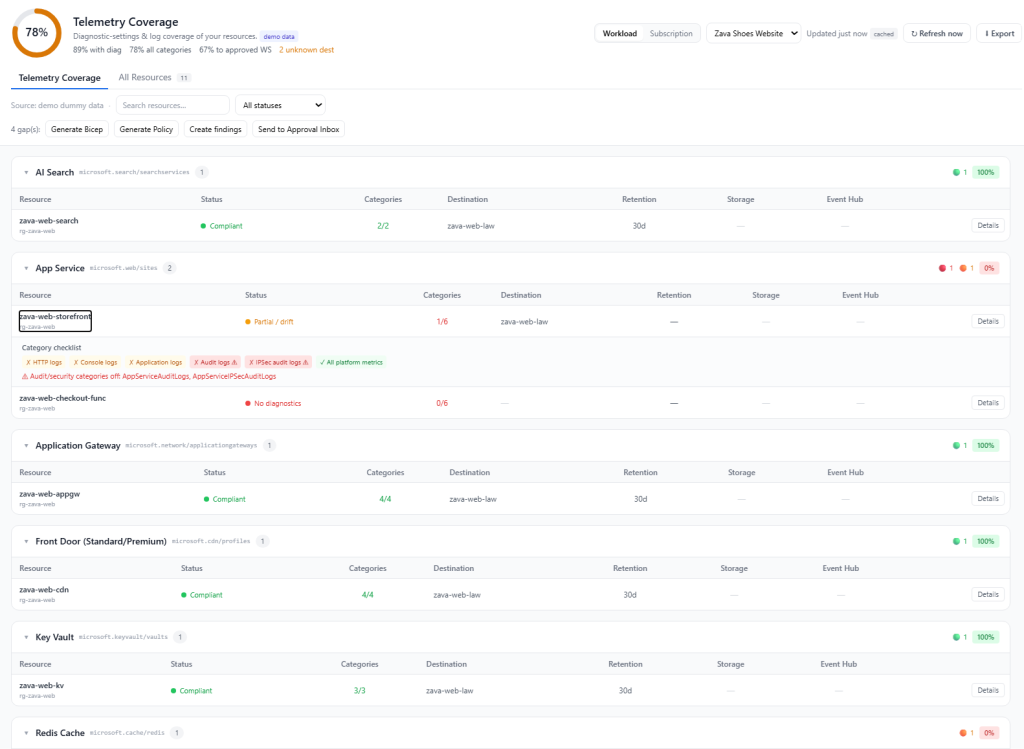
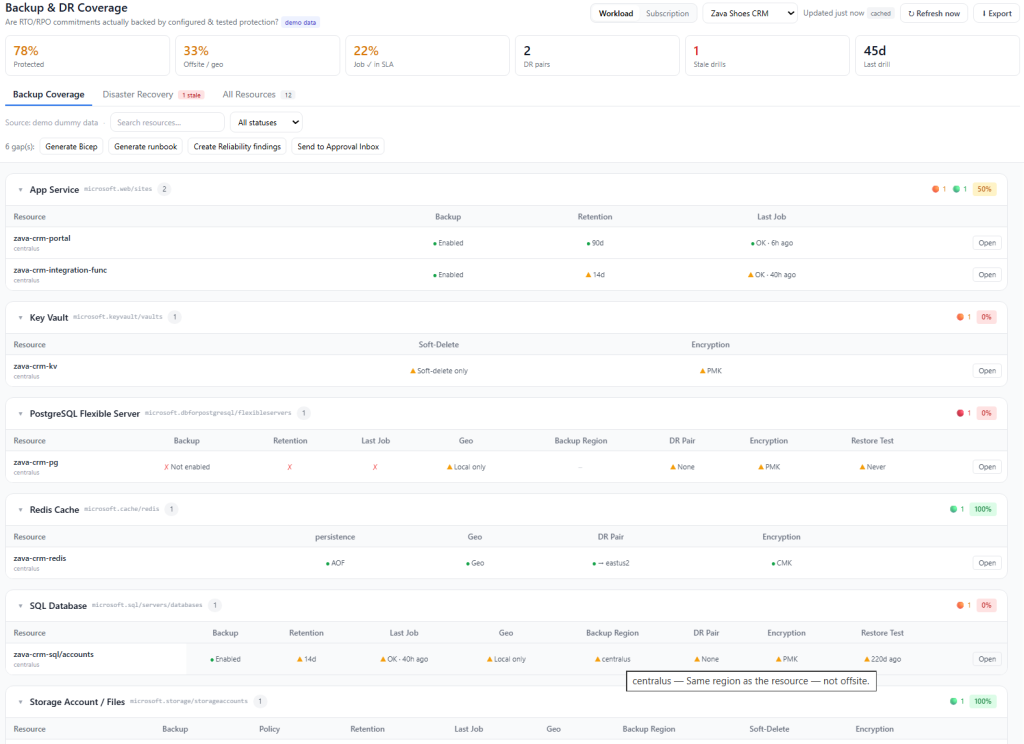
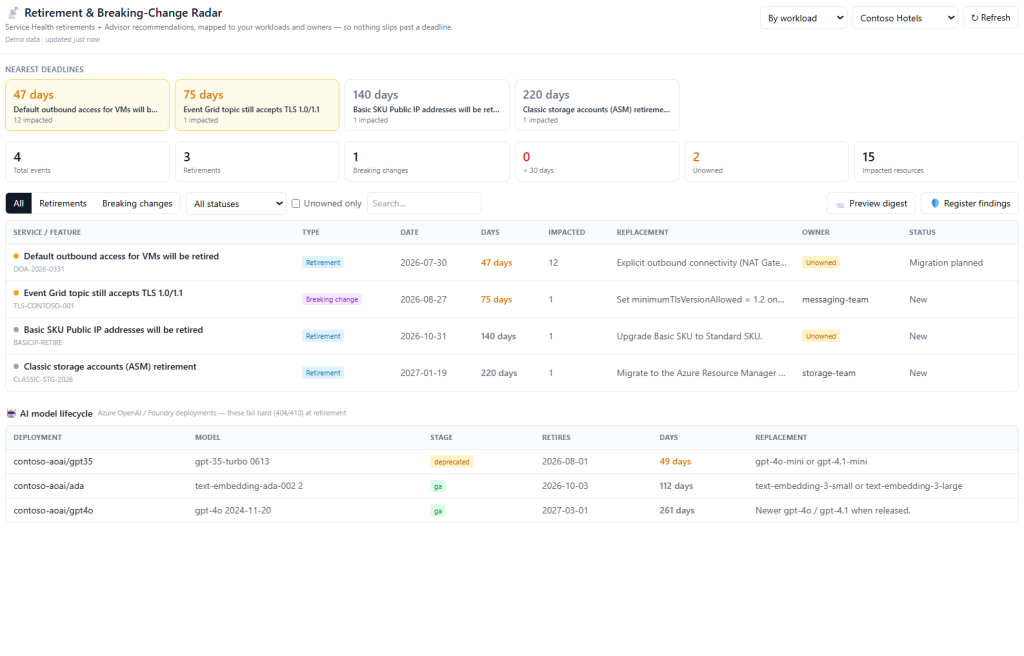
The Retirement Radar deserves a special mention. Azure deprecates services
and ships breaking changes constantly, and tracking them across a large estate is
soul-crushing. The radar maps each upcoming retirement to the exact workloads it touches,
the owners responsible, and the deadline — so a 2027 API deprecation becomes a tracked task
instead of a nasty surprise.
Find the binding bottleneck
When everything is “a little slow,” the hard part is knowing what to fix first.
The Performance Profiler profiles a whole workload’s metrics against their AMBA thresholds
and renders a heatmap — resources down the side, metrics across the top, every cell colored
by how close it is to its threshold. At a glance you can see what’s breaching, what’s
approaching, and what’s healthy.
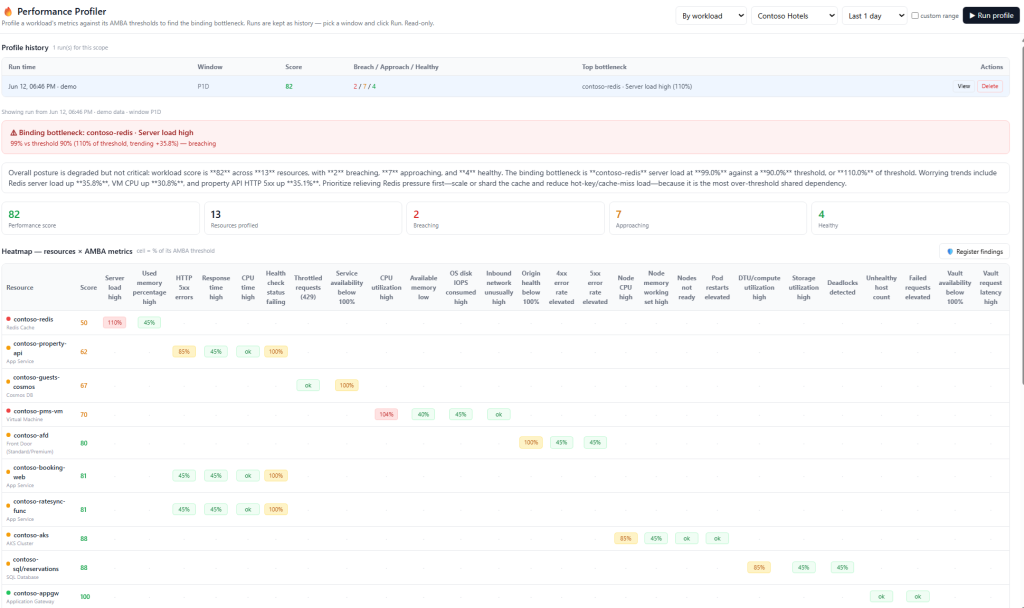
Better still, it names the binding bottleneck: the single most
over-threshold shared dependency, with a plain-language explanation of which trend to
relieve first. In the run above it’s a Redis cache pegged at 110% of its server-load
threshold and trending up — so “scale or shard the cache” jumps the queue ahead of a dozen
lesser warnings. Runs are kept as history, so you can profile, fix, and prove the
improvement.
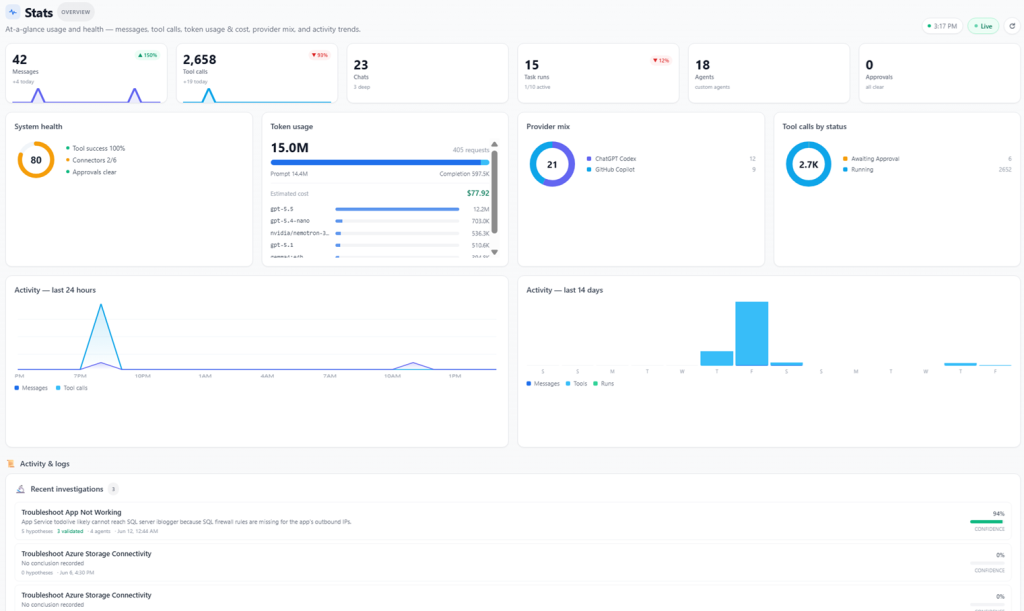
One pane for usage, cost, and health
The Monitor 2.0 dashboard is the home base — customizable, AI-authored panels that show
messages, tool calls, token usage and estimated cost, provider mix, system health, and
activity trends over time. It’s where you watch the agent work: how many investigations
ran, which models did the heavy lifting, what it spent, and whether any approvals are
waiting on you.
Bring your own AI
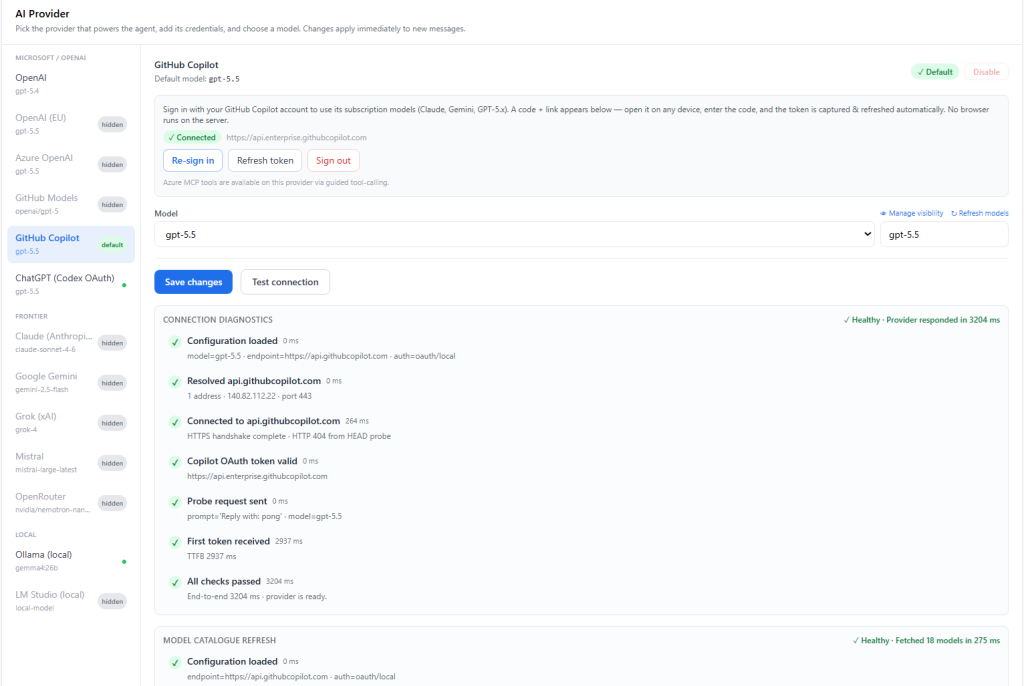
Eleven providers, switchable at runtime
You’re not locked into one model vendor. Azure Support Agent ships with a provider
abstraction supporting 11+ backends — OpenAI, Azure OpenAI, Anthropic
Claude, Google Gemini, GitHub Copilot/Models, Grok, Mistral, OpenRouter, ChatGPT (via
OAuth), and local runtimes like Ollama and LM Studio. Switch between them at runtime with
live model catalogs; run frontier models for deep investigations and a cheap local model
for routine chat.
Read-only Azure, approval-gated writes
Handing an AI access to your cloud is a reasonable thing to be nervous about, so security
isn’t an afterthought here — it’s the default posture.
- Read-only by default. The Azure MCP server starts with
--read-only. Write-capable tools are classified, approval-gated, and audited. - AI off until configured. A fresh install ships every provider disabled; one only becomes selectable once you add a key or sign in.
- Runs in your tenant. One-click deploy to Azure Container Apps means your data never leaves your subscription.
- Identity & SSO. Local users with RBAC (users / roles / groups), plus OIDC and SAML SSO, and a forced password change on first admin login.
- Encrypted secrets. Connection credentials are encrypted at rest and never returned to the UI.
until you explicitly approve a specific, audited write. That’s the deal that makes
AI-in-your-cloud actually deployable.
Under the hood
One image, one Container App
For something this capable, the deployment story is refreshingly boring — which is exactly
what you want in production. The entire app — the FastAPI backend, the built React SPA, and
the in-process MCP servers — ships as one container image and runs as a
single Container App. No separate frontend, no Redis, no sidecar zoo.
For local development, nothing is deployed to Azure at all. The MCP server reaches your
real subscription outbound using your signed-in identity and existing RBAC,
read-only by default. Here’s the shape of it:
| Backend | Python 3.12 · FastAPI · async SQLAlchemy 2 · Pydantic v2 · Alembic · SSE |
| Frontend | React 18 · TypeScript · Vite · Tailwind · TanStack Query · Recharts · XYFlow · Mermaid |
| AI | Provider abstraction with streaming + normalized tool-calls (11+ providers) |
| Azure | Official Azure MCP server (@azure/mcp) · Resource Graph runner |
| Entra ID | Vendored Microsoft Graph MCP server over stdio |
| Data | PostgreSQL (prod) / SQLite (local) · Azure Files for state |
| Hosting | Azure Container Apps (single image) |
Get started Two ways in
🚀 One-click deploy to Azure
The Deploy to Azure button provisions a managed PostgreSQL Flexible Server, an Azure Files
share for state, and the Container App running the public image — all in your subscription,
in a single deployment. You supply only an admin password (you’re forced to change it on
first login), then connect your tenant and an LLM from Settings. Estimated cost for the
default infra is roughly $25–35 / month at typical low/idle usage.
🐳 Run the whole stack locally
Prefer to kick the tires first? With Docker Desktop, the Azure CLI, and an LLM key (or a
local Ollama / LM Studio), it’s three commands:
| 1 · Sign in | az login then az account set --subscription <id> |
| 2 · Configure | Copy-Item .env.example .env (LLM key optional — you can set it in the UI) |
| 3 · Run | docker compose up --build → open http://localhost:5173 |
The backend runs DB migrations on startup, and the first Azure MCP call fetches
@azure/mcp via npx and caches it. That’s it — you’re talking to
your subscription.
Azure Support Agent turns “why is this broken?” into a ranked, validated answer — with the
diagrams, assessments, and dashboards to prove it.
If you operate Azure — as a cloud architect, an SRE, a platform engineer, or a support
engineer — I’d genuinely love for you to try it, break it, and tell me what’s missing. It’s
MIT licensed and contributions are welcome. The fastest way to help others find the project
is a GitHub star, and the fastest way to feel the difference is to point it at a real
subscription and ask it something hard.
Ready to put an AI on your Azure estate?
Deploy it into your own tenant in one click, or spin up the full stack locally in three commands. Read-only by default, your data never leaves your subscription.